The Micromelon VS Code Extension lets you program the Micromelon Rover in Python from Visual Studio Code. It connects to your Rover over Bluetooth, runs your programs, and shows live sensor data in VS Code's sidebar.
The extension comes with everything it needs, including its own copy of Python and the Micromelon Python Module, so there's nothing else to install. This guide takes you from installing VS Code to running your first program on a Rover.
What You'll Need to Start
- A Micromelon Rover, charged and switched on
- A computer running Windows, macOS or Linux, with Bluetooth
- Visual Studio Code (free); the steps below show you how to install it
Installing the Extension
- Visit code.visualstudio.com/download.
- Download the installer for your operating system and run it.
- If VS Code is already installed on your computer, skip to the next step.
- Open VS Code and click the Extensions icon in the bar on the left, or press Ctrl+Shift+X (Cmd+Shift+X on a Mac).
- Search for Micromelon.
- Find Micromelon by Micromelon Robotics and click Install.
You can also install it from the VS Code Marketplace in your web browser.
- Click the melon icon in the bar on the left of VS Code.
- The Micromelon panel opens with two sections: Rover Control, for connecting and running programs, and Examples.
The first time the extension starts, it takes a few seconds to get Python ready. You'll see Micromelon: starting Python in the bar at the bottom of the window while it does.
Connecting to Your Rover
- Switch on your Rover and check its four-digit number on the LCD screen.
- Type the number into the Rover ID box in the Rover Control panel. You can leave off the zeros at the front: if your Rover shows 0006, enter 6.
- Click Connect. Connecting takes a few seconds, and the panel shows Connected when it's done.
Note: On a Mac, the first time you connect, macOS asks whether VS Code may use Bluetooth. Click Allow.
Your First Program
- Click File → New Text File.
- Save it straight away with Ctrl+S (Cmd+S on a Mac), giving it a name that ends in
.py, such ashello.py. The.pytells VS Code it's a Python program. - Type in the following program:
from micromelon import *

print("Hello from", Robot.getName())
LEDs.writeAll([0, 255, 0])
Motors.moveDistance(10)
LEDs.off()- Click Run Code in the Rover Control panel, or press F5.
- Your Rover's LEDs turn green, it drives forwards 10cm, and the LEDs turn off again.
- The line that's running is highlighted in the editor, and the message from
printappears in the Micromelon output panel at the bottom of the window.
- Click Stop in the Rover Control panel, or press Shift+F5, to stop a program at any time.
- The Rover stops straight away, even in the middle of a
delay.
When a program ends, however it ends, the extension stops the Rover's motors and turns off its LEDs and sounds.
We will now break down the program to help you understand what each line does.
This line imports the Micromelon Module alongside all its functions and classes, making them available for use in your code.
from micromelon import *This line reads the name of your Rover and prints it to the output panel.
print("Hello from", Robot.getName())This line sets all four LEDs to green. Colours are written as [red, green, blue], with each value between 0 and 255.
LEDs.writeAll([0, 255, 0])This line drives the Rover forwards 10cm, then stops. A negative number drives backwards.
Motors.moveDistance(10)This line turns the LEDs off again.
LEDs.off()You might notice there's no RoverController, connectBLE or startRover in this program. The extension connects to your Rover from the Rover Control panel and starts it each time you run a program, so you can get straight to the code.
Viewing Sensor Data
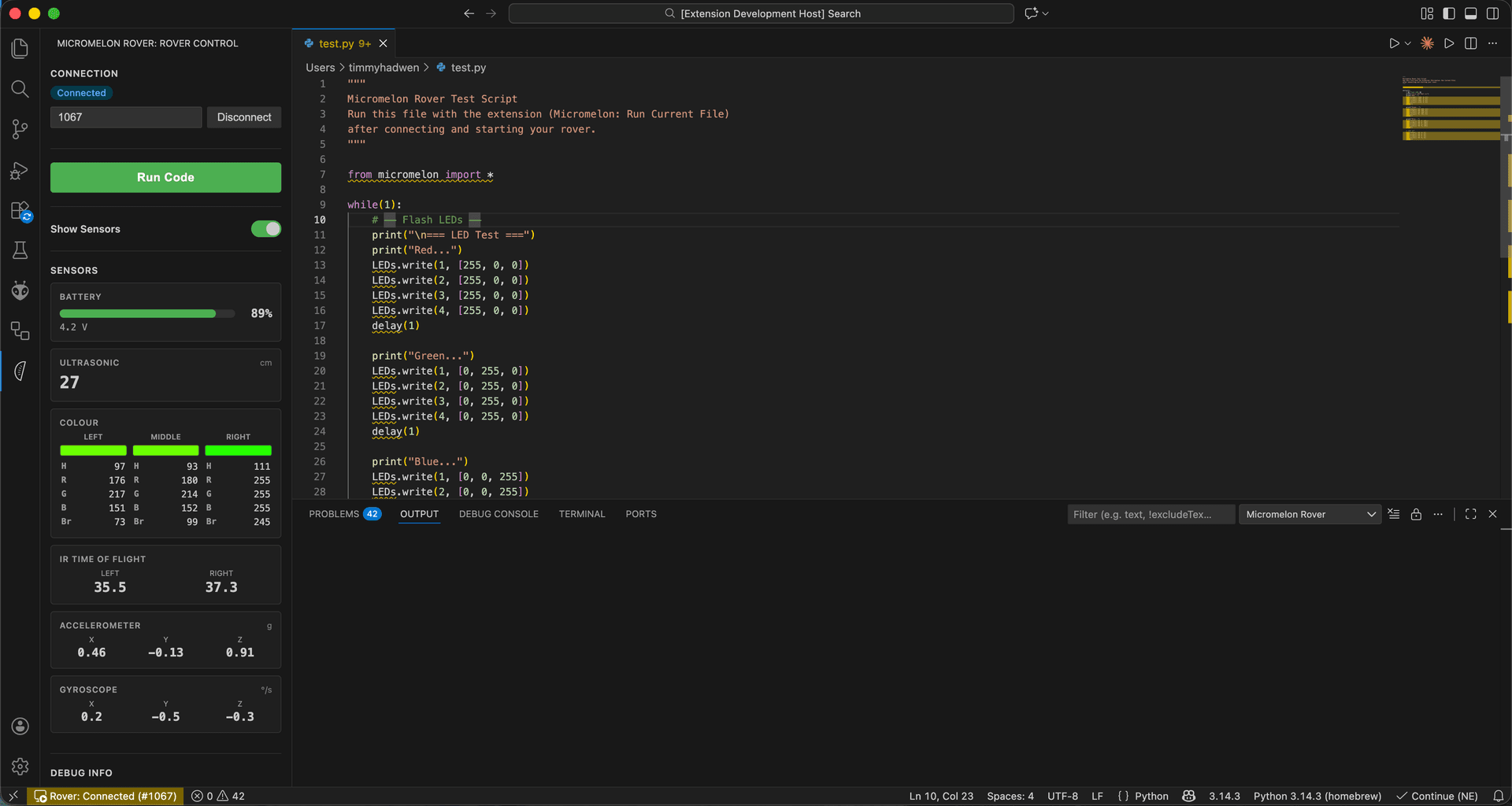
Turn on Show Sensors in the Rover Control panel to see live readings from your Rover while it's connected:
- Battery level and voltage
- Ultrasonic distance in cm
- Colour readings from the left, middle and right colour sensors
- IR time of flight distances from the left and right sensors
- Accelerometer and Gyroscope readings
Examples and Snippets
The Examples section of the Micromelon panel has short programs showing how each part of the Rover works, including driving, reading sensors, LEDs, sounds and asking questions. Click one to open a copy, then run it or change it however you like. The original stays as it was.
The extension also has code snippets for common tasks. In a Python file, type mm- and VS Code suggests ready-made code for the motors, sensors, LEDs, sounds and loops.
Asking for Input
Programs can ask questions with Python's input() function. When your program asks, a box appears at the top of the VS Code window. Type your answer and press Enter.
from micromelon import *

name = input("What's your name? ")
print("Hi", name)
Using Programs Written for the Python Module
Programs written for the Micromelon Python Module run in the extension without any changes. Lines like rc.connectBLE(1), rc.startRover() and rc.end() still work: the extension uses the Rover you connected to in the Rover Control panel, whatever number is in the code.
Troubleshooting
"Couldn't find Rover"
- Check your Rover is switched on and close to your computer.
- Check the number you entered matches the number on the Rover's screen.
- A Rover can only be connected to one device at a time. Make sure it isn't connected to the Code Editor or another computer.
"Couldn't use Bluetooth"
- Check Bluetooth is turned on in your computer's settings.
- If it is, restart your computer. Occasionally the computer's Bluetooth service stops responding, and a restart fixes it.
- On a Mac, check VS Code is allowed to use Bluetooth in System Settings → Privacy & Security → Bluetooth.
The Rover Disconnects
If your Rover is switched off, runs out of battery or goes out of range, the extension tells you it has lost the connection and any running program stops. Switch the Rover back on, bring it closer, and click Connect again.
Python Won't Start
Open the Command Palette with Ctrl+Shift+P (Cmd+Shift+P on a Mac) and run Micromelon: Restart Python. If it still won't start, run Micromelon: Show Log to see what went wrong, and contact us with what it says.
Get in TouchSend us a message and we will get back to you within 1 business day.
Now it's time to try it out yourself! See what amazing things you can do with the combined power of Python, VS Code and the Micromelon Rover. Why not try some of the other activities on our website?